1 Verification scope
Menu names, order, visibility conditions and default gesture assignments on this page were checked against the current Android settings definitions and the components that own their behavior.
Verified project state: August 29, 2026.
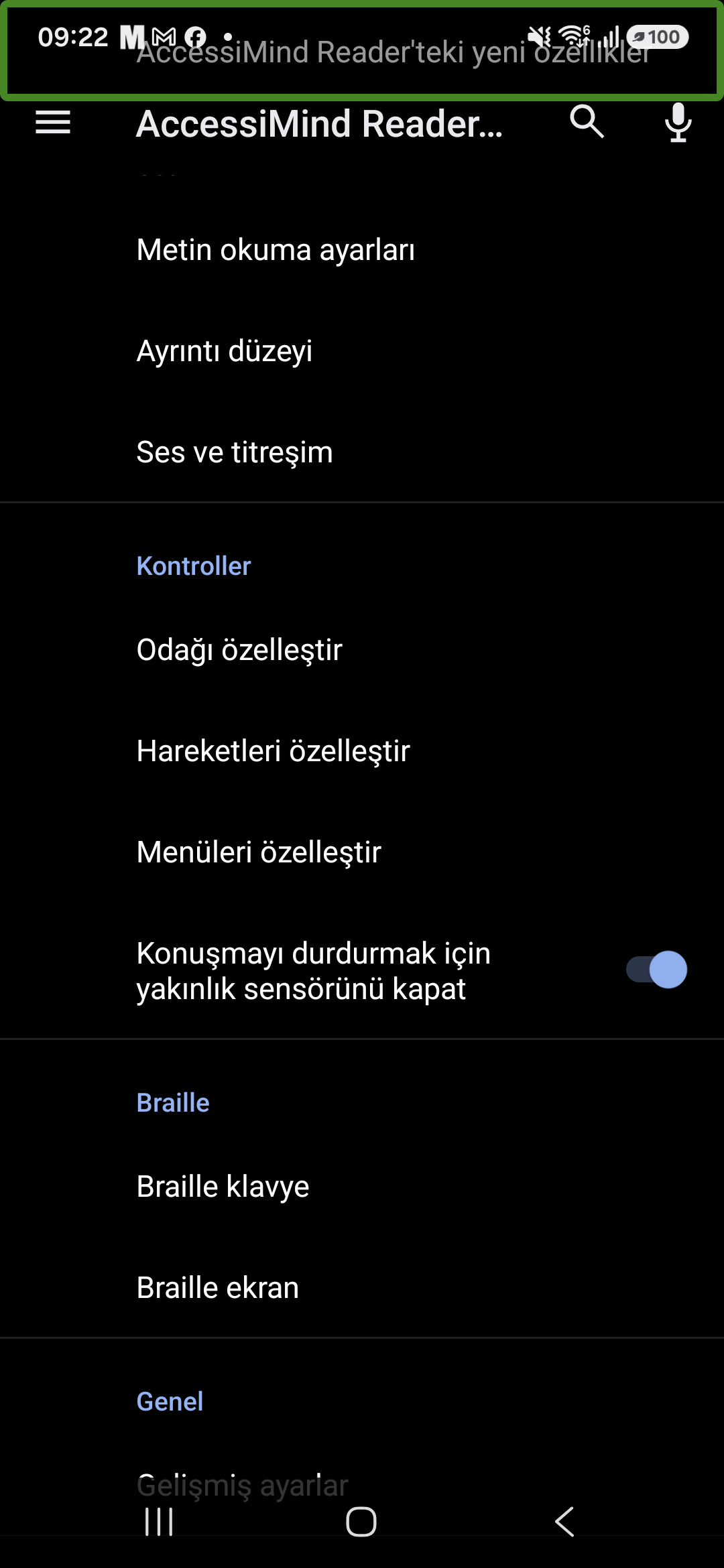
Paths: Settings → Controls → Customize menus is the actual order in the app.
Defaults: Gestures are customizable. The assignments below are reset gesture set 0.
2 Setup and essential operation
2.1 Enable the service
- Open Android Settings → Accessibility → Installed apps → AccessiMind Reader.
- Enable the service and review Android’s warning. Two touch screen readers running together may conflict.
- Use the AccessiMind Reader Setup Wizard to check permissions, speech and Braille.
- Open Training and help → Help and feedback → Practice gestures to test gestures safely.
2.2 Focus and activation
Move one finger around the screen to explore by touch. Accessibility focus moves to the meaningful item under your finger and announces its name, role, state and relevant hint. Swipe right or left for sequential navigation. One-finger double-tap activates the focused item. For split tap, keep one finger on a target and tap with a second finger. Double-tap and hold begins a long press or drag.
3 Every touch gesture and its default
Settings → Controls → Customize gesturesThis screen contains Gesture set, Practice gestures, Restore defaults and every assignable gesture below. Logical previous/next directions may be mirrored in right-to-left locales.
3.1 Core gestures
- Explore with one finger
- Move without lifting to focus and announce the item underneath.
- Double-tap
- Activate the focused item.
- Double-tap and hold
- Start a long press or hold an item for dragging.
- Split tap
- Keep one finger on the target and tap with another to activate it.
3.2 One finger: straight swipes
- Swipe up
- Previous value or action for the selected reading control.
- Swipe down
- Next value or action for the selected reading control.
- Swipe left
- Previous item.
- Swipe right
- Next item.
3.3 One finger: back-and-forth swipes
- Up then down
- Select previous reading control.
- Down then up
- Select next reading control.
- Left then right
- Scroll backward.
- Right then left
- Scroll forward.
3.4 One finger: eight angled gestures
- Up then left
- Home.
- Up then right
- Open the AccessiMind Reader context menu.
- Down then left
- Back.
- Down then right
- Open the context menu.
- Left then up
- Recent apps.
- Left then down
- Search the screen.
- Right then up
- Advanced voice commands.
- Right then down
- Notifications.
3.5 Two fingers
- Single tap
- Pause or resume speech and feedback.
- Double-tap
- Start smart voice typing.
- Double-tap and hold
- Start text-selection mode.
- Triple-tap
- Read continuously from the focused item.
- Triple-tap and hold
- Toggle voice feedback.
- Swipe up, down, left or right
- Scroll in that direction. Holding two fingers down and dragging performs direct scrolling.
- Two-finger rotor turn
- Turn the axis between two fingers like a bottle cap to change the rotor/reading control. Multi-touch is kept from leaking to the underlying app.
3.6 Three fingers
- Single tap
- Open the context menu.
- Single tap and hold
- Search the screen.
- Double-tap
- Copy selected text.
- Double-tap and hold
- Cut selected text.
- Triple-tap
- Paste clipboard text.
- Triple-tap and hold
- Unassigned by default.
- Swipe up or left
- Select previous reading control.
- Swipe down or right
- Select next reading control.
3.7 Four fingers
- Single tap
- Practice gestures.
- Double-tap
- Open the tutorial.
- Double-tap and hold
- Pass the next gesture through to the app.
- Triple-tap
- Unassigned by default.
- Swipe up / down
- Previous / next window.
- Swipe left / right
- Previous / next container.
3.8 Fingerprint sensor
On supported hardware, swipe up/down on the sensor selects the previous/next reading control. Left/right are unassigned by default.
4 Rotor and reading controls
Settings → Controls → Customize menus → Customize reading controlsSelect a control with the rotor or three-finger up/down. One-finger up/down then changes the selected value or performs its previous/next action. Options that do not apply to the current screen are omitted.
- Actions
- Click, long-click, copy and other accessibility actions on the focused control.
- AI actions
- Cycle questions about focus, the active window or the full screen.
- Analyze current screen
- Cycle Full-screen labels and Label focused control; double-tap runs the selected action.
- Label all screen controls
- Batch-analyze supported unlabeled controls on the visible screen.
- Label focused control
- Analyze one control with its identity, existing programmatic name and safe context.
- Manage labels for current app
- Appears dynamically when the app is selected or has records and opens that app directly.
- App automation
- Select and run a saved app action.
- Instant translation
- Start translation or change target language.
- Proofread
- Move among spelling and grammar suggestions.
- Characters, words, lines, paragraphs
- Move through text by that unit.
- Headings, controls, links, landmarks
- Move among matching elements in supported web content.
- Windows, containers, default navigation
- Move among windows, list/table containers or individual items.
- Speech rate, verbosity, punctuation
- Change speech values with swipe actions.
- Language, TTS engine, TTS channel
- Cycle available speech options.
- Featured controls
- Hide screen; audio ducking; scroll; accessibility, music, system, ring, notification and alarm volumes.
6 Every setting: exact location and purpose
The top-left button on the main settings screen opens the Settings sections picker. Search and voice search locate a specific setting. The source-defined section order follows.
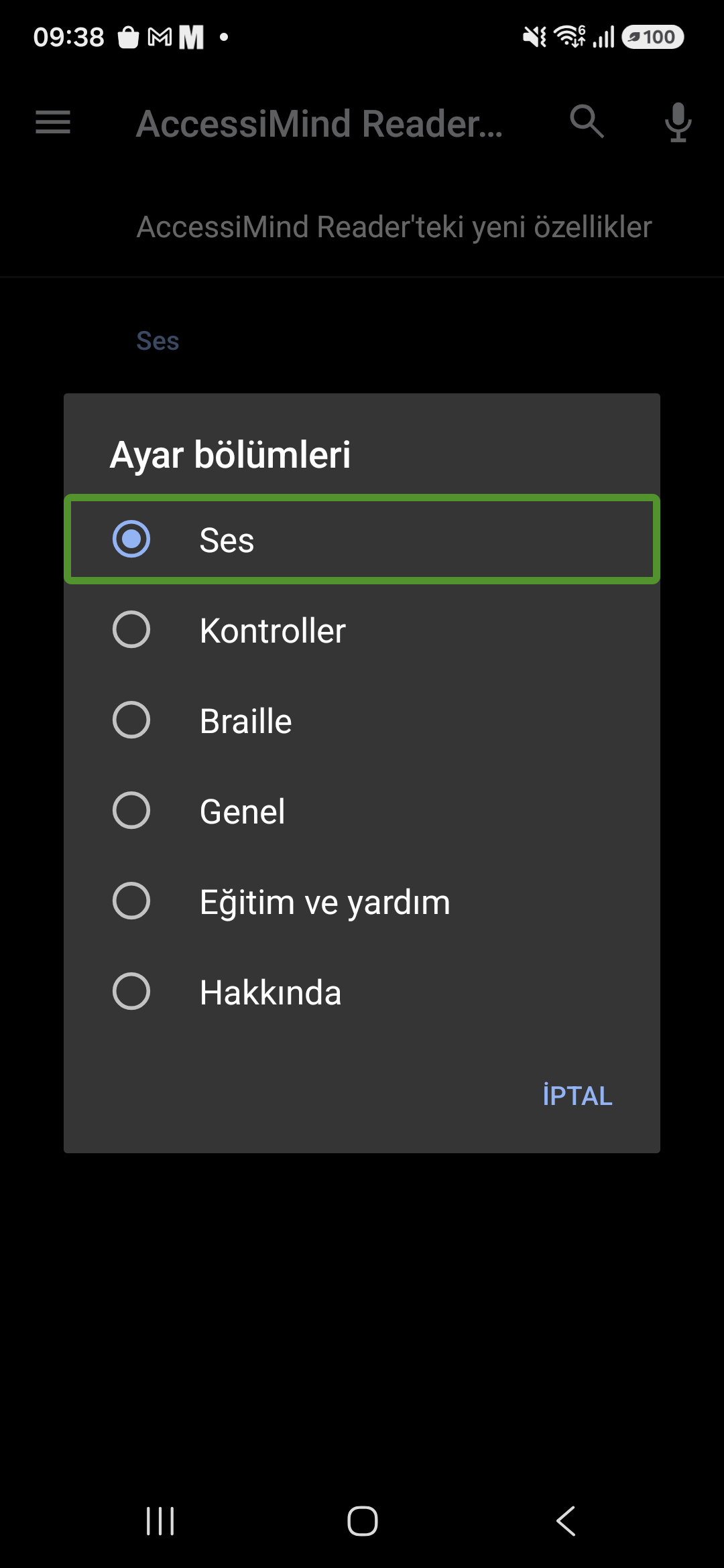
6.1 Audio
- Speech volume
- Adjusts screen-reader speech relative to system audio.
- Text-to-speech settings
- Opens Android engine, language, rate and voice settings.
- Second TTS for notifications
- Reads notifications with a separate engine/voice; enables Notification engine and Notification voice.
- Verbosity
- Preset plus hints, containers, item counts, element type, window names, screen-off notifications, pitch changes, phonetic letters, touch/physical keyboard echo, capitals, progress, element IDs and punctuation.
- Sound and vibration
- Accessibility, music, system, ring, notification and alarm volumes; TTS channel; speech rate; sound feedback and volume; ducking; vibration. Hold one finger on screen plus a volume key for announcement volume; three-finger up/down changes speech rate.
6.2 Notification management
Filter mode (allow all, allowlist or blocklist); allowlist; blocklist; periodic time announcements and interval; quiet-hours switch, start and end. Equal start/end disables quieting.
6.3 Controls
- Customize focus
- Thick borders and Default, Red, Orange, Yellow, Green, Blue or Gray.
- Customize gestures
- All gesture assignments, two gesture sets, practice and reset.
- Volume-key controls
- Enable custom controls; assign volume-up/down short and long presses and text-cursor unit. Off preserves Android behavior.
- Customize menus
- Separate context-menu and reading-control visibility.
- Proximity sensor
- Stop speech when the phone is brought close.
- Image and icon descriptions
- Automatic image, detailed image, automatic icon and text-in-image descriptions.
6.4 Instant translation
Enable; online Google/on-device engine; copy to clipboard; source language; target language; download offline packs. Translation runs only when requested from its menu/rotor command.
6.5 AI settings
Gemini Voice Command; Google AI Studio API key; Gemini model and refresh; use on-device Gemma; download/remove the approximately 2.6 GB model; AI system instruction; send a cropped focused-item image. The API key is encrypted with Android Keystore.
6.6 Advanced voice commands
Choose recognition language. Map a trigger phrase to an app, system action (Back, Home, Recents, Notifications, Quick Settings, All apps, power dialog) or supported AccessiMind action. Open an existing command to edit/delete it.
6.7 Per-app screen-reader settings
Add an app, save the foreground app’s current settings, and manage Saved apps. Each profile reports enabled state and setting count; an enabled profile is applied when that app opens.
6.8 Tools
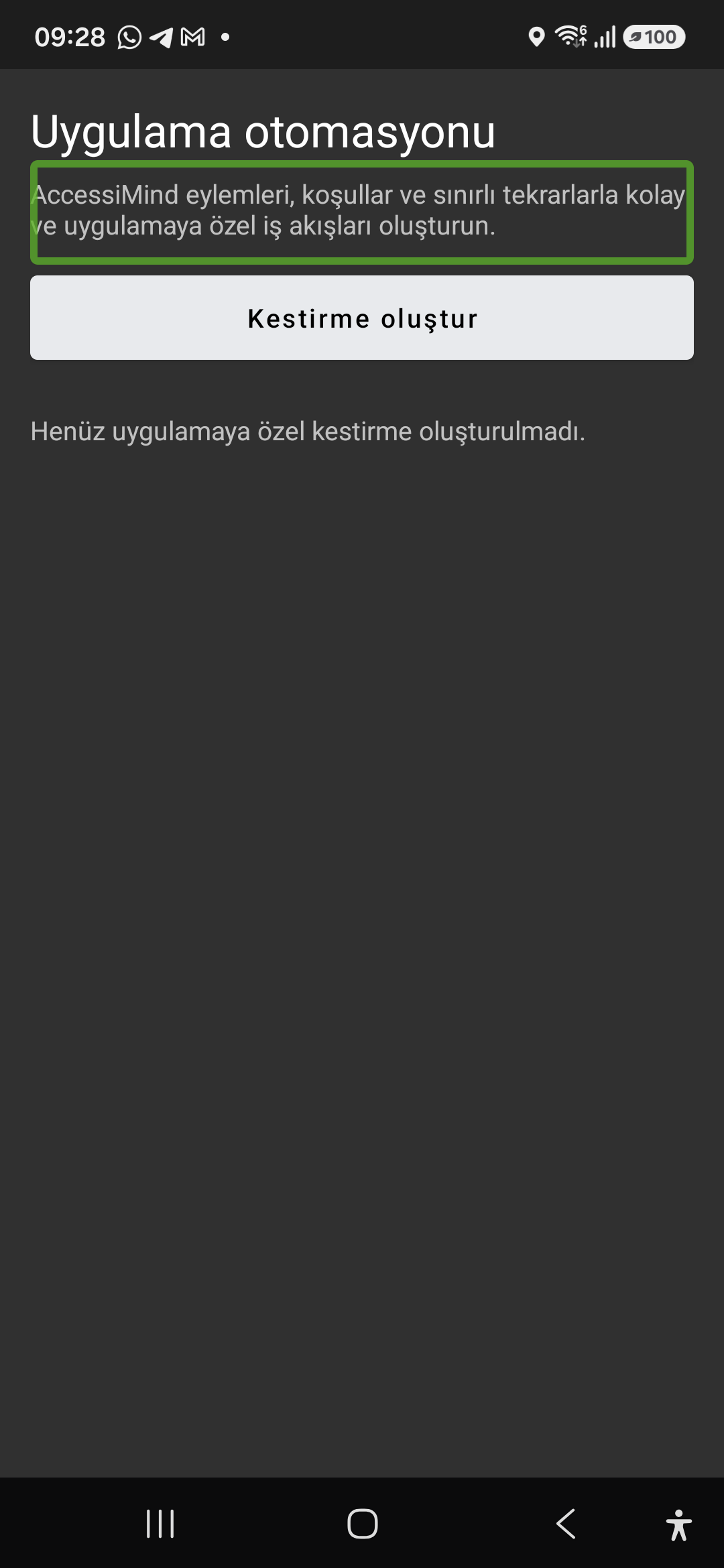
AccessiMind Browser: article mode, bookmarks, voice search and on-device AI summaries. App automation: app-specific actions, conditions and bounded repeats.
6.9 Braille
Braille keyboard opens on-screen Braille training/settings. Braille display opens connected-display, table and connection settings. Availability depends on hardware.
6.10 Advanced settings
- Speak passwords
- Password speech without headphones.
- Custom labels
- Manually created accessibility labels.
- Smart automatic labeling
- The actual entry point for app selection, suggestions and per-app label management.
- Single-tap activation
- Activate the focused item with one tap.
- Element description order
- Order of name, role, state and other speech parts.
- Time format
- Format used for time announcements.
- Reduce window announcement delay
- Speeds window-transition speech.
- Typing preference
- When a touch-keyboard character is entered.
- Typing hold delay
- Long-press threshold while typing.
- Keyboard shortcuts
- Physical-keyboard commands.
- Developer settings
- Version code, diagnostics, display speech output, gesture handling, multiple gesture sets, repeat recognized speech, performance stats, touch exploration, node-tree/log overlay, log level and event filter. Leave unchanged unless diagnosing.
- Privacy / Terms
- AccessiMind’s own web documents.
6.11 Training and help
Setup Wizard; Tutorial and user guide; Help and feedback; Contact developer. Practice gestures announces current assignments.
6.12 About
Version/developer; Privacy; Terms; feedback email; Google Group and subscription; Engelsiz Android community.
7 AI and smart automatic labeling
Correct path: Settings → Advanced settings → Smart automatic labelingConfigure the provider separately at Settings → AI settings → Gemini settings.
7.1 App selection and consent
- Enable the feature and add apps under Selected applications.
- For cloud analysis, review and grant per-app consent; it can be revoked later.
- A suggestion is bound to app, control identity and safe context.
7.2 Manage one app’s labels
The screen shows pending/applied state. Each label offers Apply, Edit and Delete. Management actions import/export only that app’s labels, remove the app, clear all of its labels and grant/revoke cloud consent. Import validates the file and offers replace or keep-current conflict handling.
7.3 Screen analysis
Analyze current screen contains Label all screen controls and Label focused control. Full-screen mode collects supported unlabeled controls in the visible window only. Focused mode rechecks identity, existing programmatic name and context; it will not apply a result to a stale focus target. Both actions are also available as reading controls. Review results in the app-specific manager.
8 Tools, search, copy and automation
8.1 Search the screen
Search text or list buttons, text and other supported target types on the current screen; choosing a result moves focus to the real item.
8.2 Copy text
Copy focused text or the bounded range between two focus points on the same screen. Password fields are excluded and an unfinished range times out.
8.3 Notifications
The menu tool lists active notifications, filters by source, opens or copies them. Notification management settings instead govern automatic speech; these are distinct.
8.4 App automation
- Open Settings → Tools → App automation.
- Create shortcut; define the app, actions, conditions and bounded repeats.
- Run it from the library or enabled App automation reading control.
- Check the target app and condition to avoid running on the wrong screen.
9 Troubleshooting
9.1 A gesture does something else
Check its current summary and gesture set in Customize gestures, then test it in Practice gestures.
9.2 A menu item is missing
Check its switch in Customize context menu or Customize reading controls. Current-app label management also requires that the open app is selected or has stored records.
9.3 AI analysis does not start
Check the Gemini key/model or Gemma download/verification, app selection and per-app cloud consent when required.
9.4 Report an issue
Email sarperarikan@gmail.com with app/Android version, screen name, exact gesture or menu path, expected result and what was announced. Never send API keys, passwords or private screen content.