Manual de referência completo verificado na fonte

AccessiMind+ (2026/10-116 · 1621660) Guia do usuário

Documentação passo a passo completa para configuração, arquitetura de configurações de 6 guias, gestos de forma livre de 1 a 5 dedos, roteamento de áudio TTS de 6 canais, agente AI Wizard, hub de tradução unificado de 6 modos, ditado inteligente de 31 idiomas, gerenciamento de chamadas, teclado acessível e navegador da web.

Guia de vídeo passo a passo da tela 2026/10-116 · Português (Portugal)

Telas AccessiMind+, interface de 6 guias e todos os recursos em 12 capítulos

Passo a passo narrado e legendado tela por tela com telas reais do Android capturadas do AccessiMind+ 2026/10-116 (Geral, Personalizações de UI, Canal de Saída TTS, Gestos, Criador de Gestos de Forma Livre, Rotulagem Automática, Avançado, Gerenciamento de Chamadas, Assistente de IA, Tradução de Fala, Ditado Inteligente e Teclado/Navegador Acessível).

01:39 · 12 Chapters · PT

Selecionar qualquer capítulo leva o vídeo diretamente para o passo a passo daquela tela. Legendas e transcrições completas para download são fornecidas.

Lançamento de produção • 20 de outubro de 2026 • Versão 2026/10-116 (código de versão: 1621660)

AccessiMind+ 2026/10-116 (1621660): Núcleo reconstruído, interface de 6 guias e suporte para 101 locais

Arquitetura híbrida dual-DEX, preservação de configurações atômicas de 4 camadas (inicialização direta), gerenciador de fluxo de saída TTS de 6 canais, anúncios de boas-vindas/desligamento de 101 localidades e segurança Android 100% nativa, livre de SDKs de localização de terceiros.

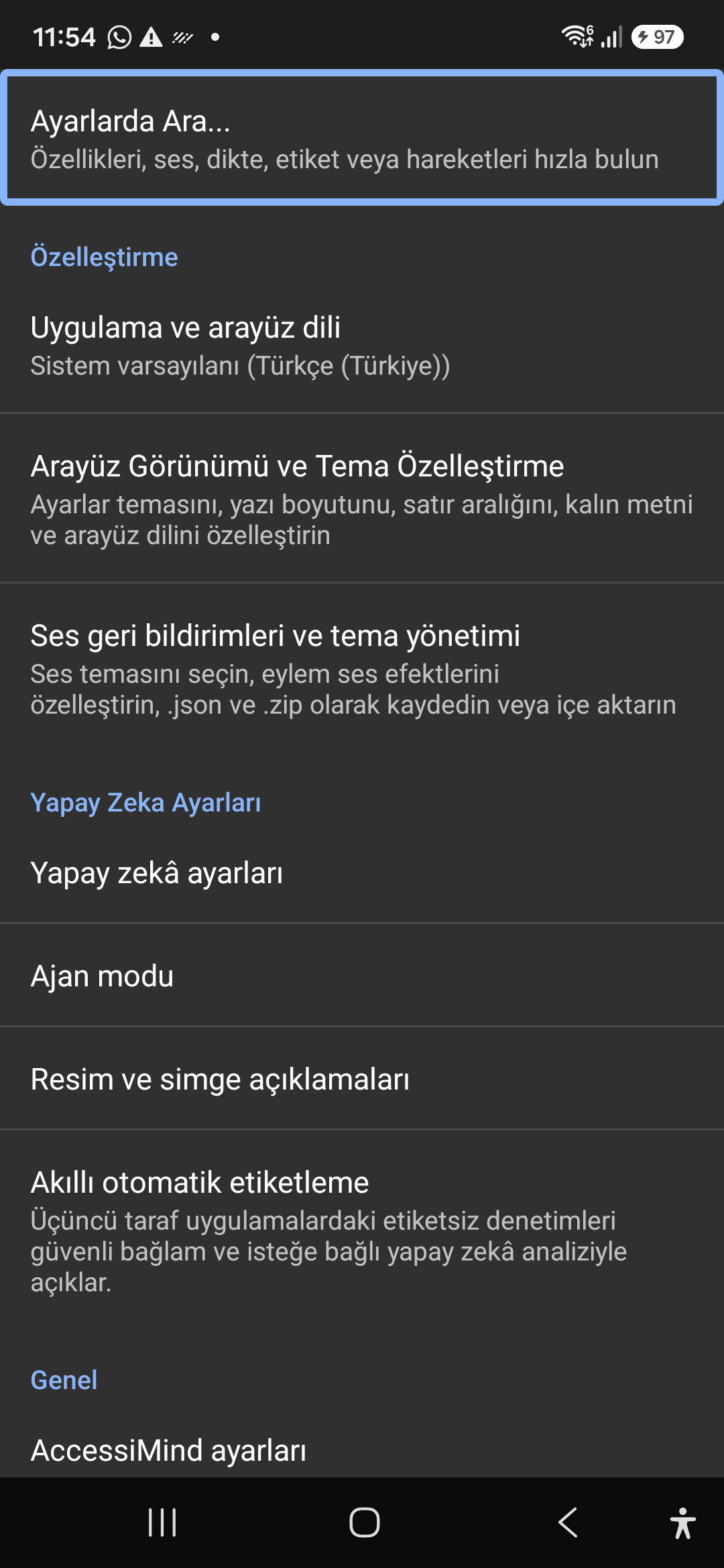
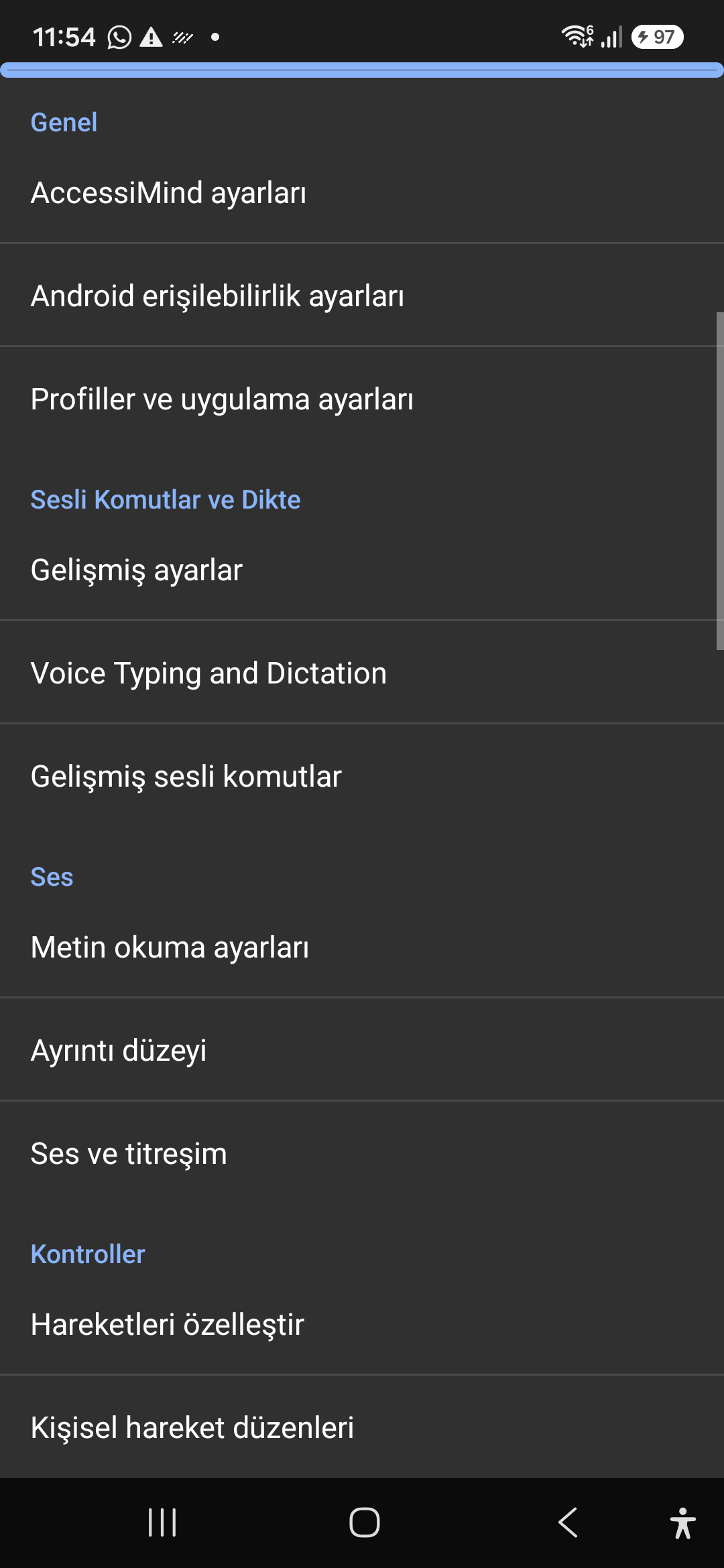
Tela inicial moderna de 6 guias e pesquisa instantânea por voz/texto

Acesse todas as configurações em seis guias organizadas: Geral, Gestos, Fala de Conteúdo, Avançado, Inteligência Artificial e Configurações Extras. Filtre qualquer opção instantaneamente usando a barra de pesquisa superior ou a Pesquisa por voz.
Assistente de IA, agente assistente e OCR offline multi-script

Descreva telas e imagens com Gemini, OpenAI/Codex ou Offline Gemma-4 E2B, execute tarefas de agente assistente de várias etapas por voz e reconheça texto em scripts com ONNX offline + Google ML Kit OCR.

Hub de tradução unificado (6 modos) e ditado inteligente em 31 idiomas

Foco detectado automaticamente, navegação contínua, OCR de imagem, tela cheia, área de transferência e tradução de fala ao vivo. Ditado inteligente com reconhecimento de pontuação e comandos de voz personalizados em 31 idiomas.

Criador de gestos de 1 a 5 dedos e fala de desligamento de 101 locais

Desenhe gestos personalizados de forma livre de 1 a 5 dedos e importe/exporte layouts como JSON. Ouça anúncios falados confiáveis ​​no idioma do seu sistema sempre que o leitor de tela for ativado ou desativado em 101 conjuntos de localidades.

Gerenciador de fluxo TTS de 6 canais e teclado de discagem de chamada única

Direcione a fala de forma independente através dos canais de Acessibilidade, Mídia, Notificação, Alarme, Toque ou Chamada de Voz. Atenda/encerre chamadas deslizando com um dedo, viva-voz automático e teclas do teclado de toque único.

Preservação de configurações atômicas de 4 camadas e localização nativa

Perda zero de configurações nas telas de bloqueio do Direct Boot e atualizações de aplicativos por meio de instantâneos JSON atômicos de 4 camadas, além de anúncios de localização Android LocationManager + Geocoder nativos.

02 / 12 · Settings > Customization > App Language / Appearance

2. Interface Customization & System Locale Integration

Assista a este passo a passo da tela no vídeo (00:08 - 00:17)

Customizable appearance with high contrast modes, large text rendering, card borders, and independent language selection.

Guia de vídeo passo a passo da tela 2026/10-116 (00:08 - 00:17)

Lock the interface language to system default or independently select from 30 supported languages. WCAG 2.2 compliant dark/light themes and custom font scales.

Screenshot showing customization options for language and theme appearance.

2. Interface Customization & System Locale Integration — Settings > Customization > App Language / Appearance
Settings > Customization > App Language / Appearance
03 / 12 · Settings > Customization > Sound Feedback & Themes

3. Audio Feedback & Sound Theme Management

Assista a este passo a passo da tela no vídeo (00:17 - 00:22)

Configure feedback sounds for focus changes, clicks, and notifications. Easily import community-crafted sound packages via .zip or .json.

Guia de vídeo passo a passo da tela 2026/10-116 (00:17 - 00:22)

Customize action audio effects, choose built-in sound themes, or import/export external WAV and OGG sound packages.

Screenshot showing sound feedback and theme configuration.

3. Audio Feedback & Sound Theme Management — Settings > Customization > Sound Feedback & Themes
Settings > Customization > Sound Feedback & Themes
04 / 12 · Settings > AI Settings > Agent Mode

4. Dedicated AI Architecture & Autonomous Agent Mode

Assista a este passo a passo da tela no vídeo (00:22 - 00:28)

Agent Mode interprets onscreen context and coordinates complex tasks such as form completion, order placement, or message drafts with interactive safety overlays.

Guia de vídeo passo a passo da tela 2026/10-116 (00:22 - 00:28)

Multi-provider AI architecture integrating Google Gemini 2.5, on-device Gemma, and GPT. Autonomous Agent Mode carries out multi-step tasks with user approval.

Screenshot displaying AI Settings and Agent Mode controls.

4. Dedicated AI Architecture & Autonomous Agent Mode — Settings > AI Settings > Agent Mode
Settings > AI Settings > Agent Mode
05 / 12 · Settings > AI Settings > Image Descriptions / Auto-Labeling

5. Image, Icon Descriptions & Smart Automatic Labeling

Assista a este passo a passo da tela no vídeo (00:28 - 00:33)

Visual accessibility enabled by cloud and on-device vision models. Once labeled, buttons and icons are cached locally to minimize network latency.

Guia de vídeo passo a passo da tela 2026/10-116 (00:28 - 00:33)

Narrate images and OCR text within seconds. Recognize unlabeled controls in third-party apps and cache them in local SQLite storage.

Screenshot illustrating image narration and automatic labeling options.

5. Image, Icon Descriptions & Smart Automatic Labeling — Settings > AI Settings > Image Descriptions / Auto-Labeling
Settings > AI Settings > Image Descriptions / Auto-Labeling
06 / 12 · Settings > General > Voice Typing and Dictation

6. General Settings, Voice Typing & Dictation

Assista a este passo a passo da tela no vídeo (00:33 - 00:41)

Control the screen reader using voice commands and dictate text into any input field with high recognition accuracy.

Guia de vídeo passo a passo da tela 2026/10-116 (00:33 - 00:41)

Hands-free voice typing, custom voice commands, and core AccessiMind operational parameters.

Screenshot showing general settings and voice typing dictation.

6. General Settings, Voice Typing & Dictation — Settings > General > Voice Typing and Dictation
Settings > General > Voice Typing and Dictation
07 / 12 · Settings > Audio > Text-to-Speech / Verbosity

7. Text-to-Speech (TTS), Verbosity & Audio Channels

Assista a este passo a passo da tela no vídeo (00:41 - 00:50)

Fine-tune speech output parameters, manage punctuation and character-by-character pronunciation, and route audio across dedicated streams.

Guia de vídeo passo a passo da tela 2026/10-116 (00:41 - 00:50)

TTS engine selection, speech rate, pitch, 6 independent audio output channels, and granular verbosity controls.

Screenshot showing text-to-speech engine and verbosity preferences.

7. Text-to-Speech (TTS), Verbosity & Audio Channels — Settings > Audio > Text-to-Speech / Verbosity
Settings > Audio > Text-to-Speech / Verbosity
08 / 12 · Settings > Controls > Customize Gestures / Gesture Layouts

8. Controls: Gesture Customization & Custom Layouts

Assista a este passo a passo da tela no vídeo (00:50 - 00:57)

Freely remap single and multi-finger taps, swipes, and multi-directional gestures to navigation, reading, or custom actions.

Guia de vídeo passo a passo da tela 2026/10-116 (00:50 - 00:57)

Assign any action to 1 to 5 finger gestures, define independent JSON gesture layouts, and create app profiles.

Screenshot showing gesture customization and custom layout options.

8. Controls: Gesture Customization & Custom Layouts — Settings > Controls > Customize Gestures / Gesture Layouts
Settings > Controls > Customize Gestures / Gesture Layouts
09 / 12 · Settings > Controls > Customize Menus / Navigation Options

9. Customize Menus, Reading Controls & Navigation

Assista a este passo a passo da tela no vídeo (00:57 - 01:04)

Personalize the items appearing in the global context menu and reading granularity selector to match your personal workflow.

Guia de vídeo passo a passo da tela 2026/10-116 (00:57 - 01:04)

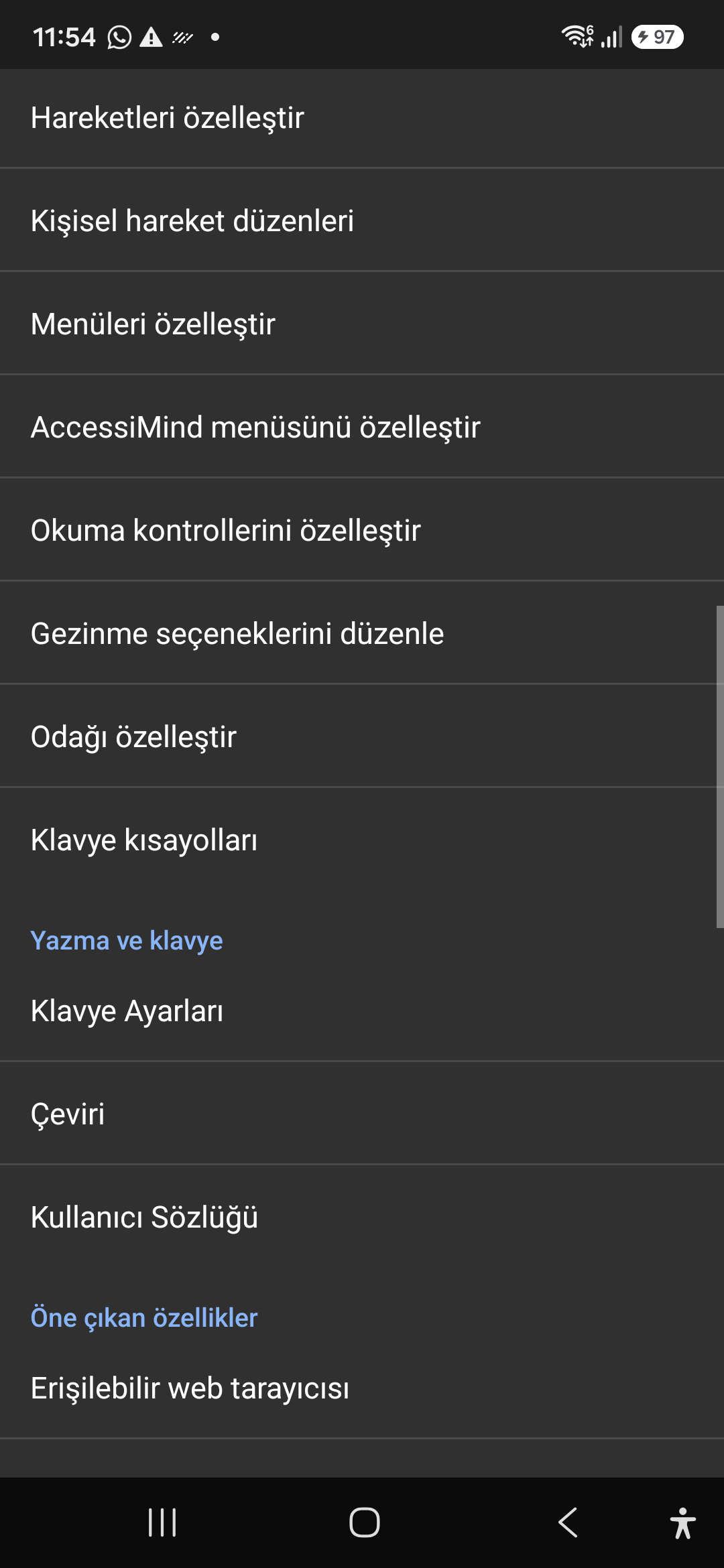
Tailor the AccessiMind menu, reading controls (rotor), navigation granularities, focus indicator, and keyboard shortcuts.

Screenshot showing menu customization and navigation granularities.

9. Customize Menus, Reading Controls & Navigation — Settings > Controls > Customize Menus / Navigation Options
Settings > Controls > Customize Menus / Navigation Options
10 / 12 · Settings > Plugins > Create Plugin / Import Lua / API Docs

10. Plugins Engine & Sandboxed Lua Execution

Assista a este passo a passo da tela no vídeo (01:04 - 01:13)

Author and run custom Lua scripts securely. Fully documented access to accessibility, speech, UI, HTTP, and local storage APIs.

Guia de vídeo passo a passo da tela 2026/10-116 (01:04 - 01:13)

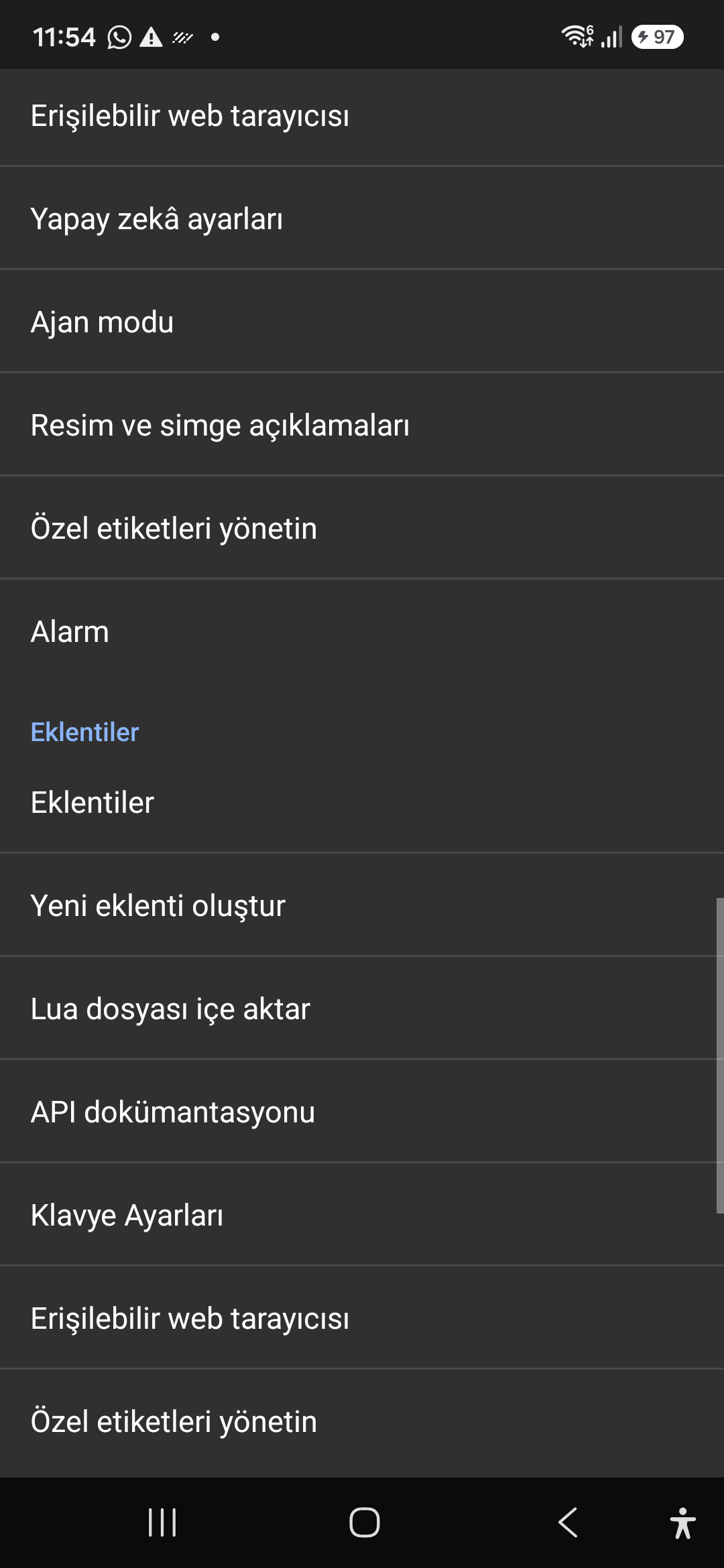
Sandboxed Lua scripting execution in an isolated Android process, on-device code editing, and comprehensive built-in API documentation.

Screenshot showing plugins hub and API documentation.

10. Plugins Engine & Sandboxed Lua Execution — Settings > Plugins > Create Plugin / Import Lua / API Docs
Settings > Plugins > Create Plugin / Import Lua / API Docs
11 / 12 · Settings > Plugins and Tools > Keyboard / Browser / Custom Labels

11. Integrated Tools: Keyboard, Browser & Label Manager

Assista a este passo a passo da tela no vídeo (01:13 - 01:22)

A suite of integrated utility tools designed specifically for screen reader users, including accessible web browsing and label backup.

Guia de vídeo passo a passo da tela 2026/10-116 (01:13 - 01:22)

AccessiMind Keyboard preferences, accessible built-in web browser, and management of user-defined labels.

Screenshot displaying keyboard settings, accessible browser, and label manager.

11. Integrated Tools: Keyboard, Browser & Label Manager — Settings > Plugins and Tools > Keyboard / Browser / Custom Labels
Settings > Plugins and Tools > Keyboard / Browser / Custom Labels
12 / 12 · Settings > Braille / Help & Support > Release 116 Info / Community

12. Braille Support, Release 116 Info & Community Channels

Assista a este passo a passo da tela no vídeo (01:22 - 01:39)

Connect refreshable Braille displays via Bluetooth or USB. Access Release 116 verification certificates, privacy terms, and direct Telegram/Google Groups.

Guia de vídeo passo a passo da tela 2026/10-116 (01:22 - 01:39)

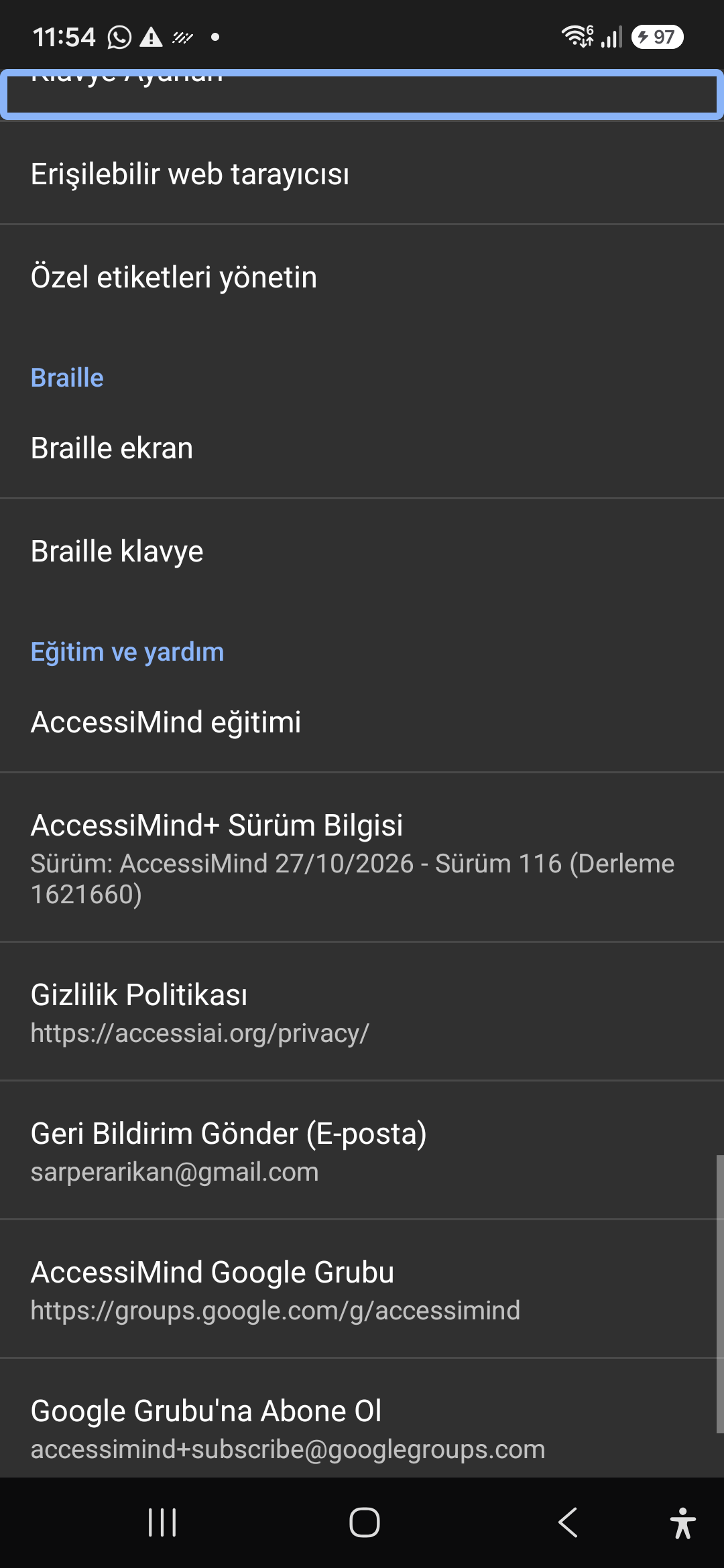
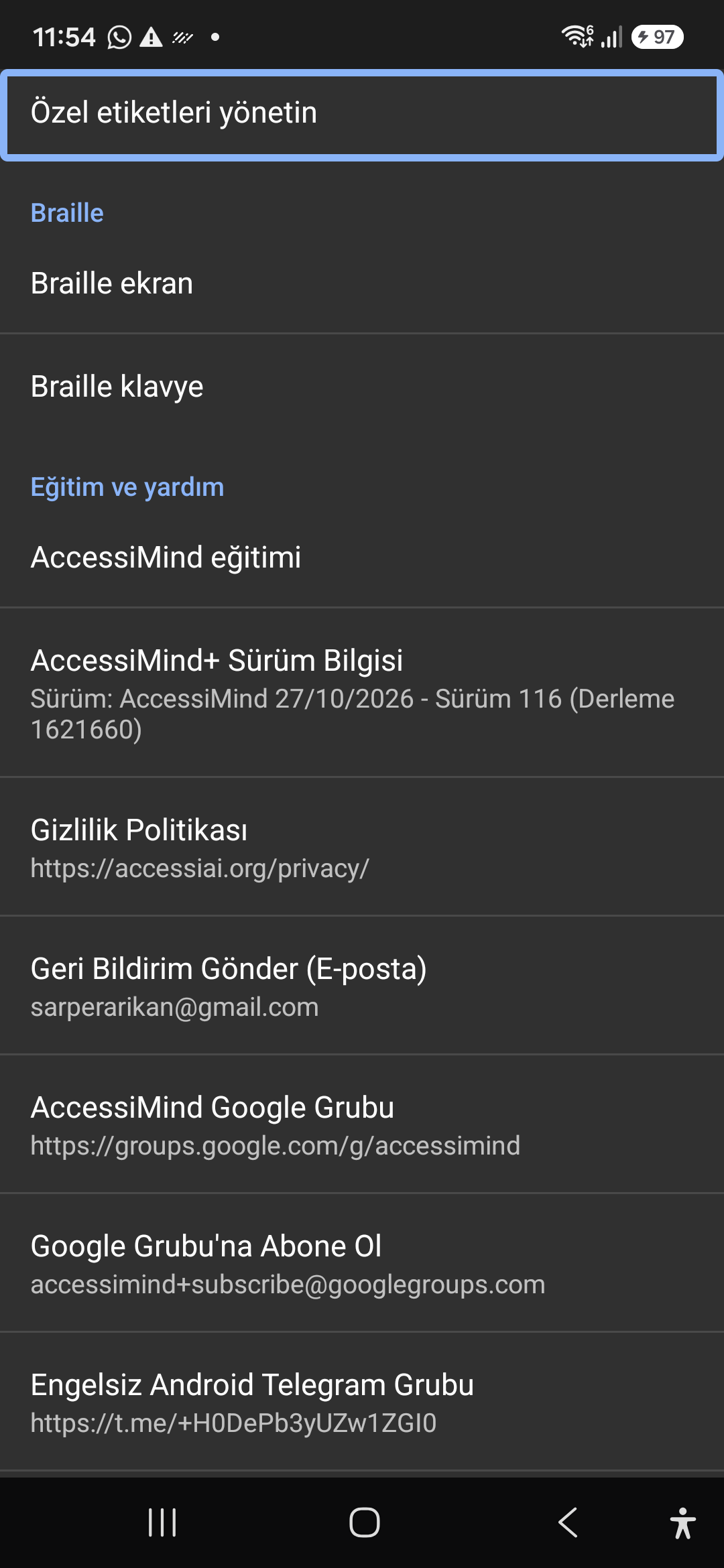
Braille display and on-screen keyboard support; Release 116 (Build 1621660) metadata, Privacy Policy, Feedback, and active community groups.

Screenshot showing Braille settings, Release 116 version info, and community channels.

12. Braille Support, Release 116 Info & Community Channels — Settings > Braille / Help & Support > Release 116 Info / Community
Settings > Braille / Help & Support > Release 116 Info / Community